> ## Documentation Index
> Fetch the complete documentation index at: https://docs.seekout.com/llms.txt
> Use this file to discover all available pages before exploring further.
# Connect SeekOut to Claude
> Connect SeekOut to Claude as a custom connector in a personal or managed workspace.
Claude.ai supports SeekOut MCP as a custom connector. Personal users add the connector in their settings. For Team and Enterprise workspaces, an Owner or Primary Owner adds it for the organization before members authenticate.
## Prerequisites
* An active SeekOut account
* A Claude.ai account (Free, Pro, Max, Team, or Enterprise)
## Setup
[Open **Add custom connector** in Claude](https://claude.ai/new?modal=add-custom-connector#settings/customize-connectors).
```
https://seekout-search-mcp.seekout.io/tools
```
When prompted, sign in with your SeekOut account to authorize the connection.
Open a new conversation and try:
Use SeekOut MCP to find senior engineers in Austin with Kubernetes experience.
Ask a Claude **Owner** or **Primary Owner** to open **Organization settings → Connectors**, click **Add connector**, choose **Custom → Web connector**, and enter the MCP Server URL below.
```
https://seekout-search-mcp.seekout.io/tools
```
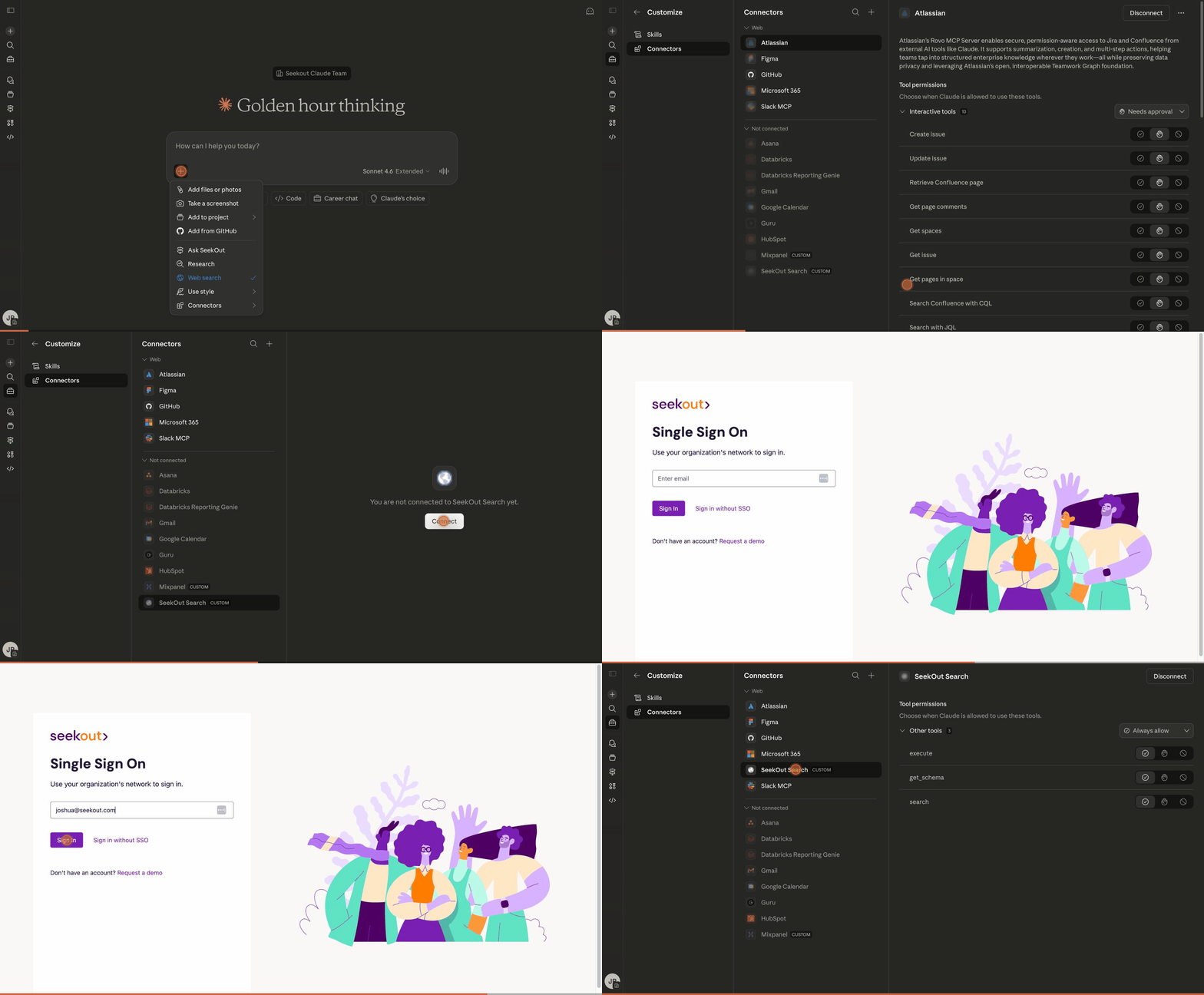
After the organization connector is added, every team member goes to their own **Customize → Connectors** settings, finds the SeekOut connector in the list, and clicks **Connect**.
When prompted, sign in with your SeekOut account.
Start a conversation and try:
Use SeekOut MCP to compare engineering talent markets in Seattle and Denver.
If **Add custom connector** is unavailable, ask your Claude workspace Owner to add SeekOut for the organization. See [Anthropic's custom connector documentation](https://support.anthropic.com/en/articles/11175166-getting-started-with-custom-integrations-using-remote-mcp).
## Walkthrough
Add the SeekOut connector and sign in with SSO.
 ## Troubleshooting
### Claude repeatedly asks you to approve SeekOut tools
Claude asks for permission before running connector tools, and choosing **Always allow** in the prompt applies only to the specific tool that triggered it. To stop repeated prompts, pre-approve the SeekOut tools in your settings:
1. In Claude, open **Settings → Connectors**.
2. Find the **SeekOut** connector and open its tool configuration.
3. Set each SeekOut tool to **Always allow**.
Keep the following in mind:
* The setting is **per user**. Each member of a Team or Enterprise workspace configures it individually.
* Disconnecting and reconnecting the SeekOut connector can reset tool permissions to the default, so recheck them after reconnecting.
### "Unable to reach SeekOut App"
This error usually indicates a stale Claude desktop app rather than a SeekOut outage. Restart the Claude desktop app and install any pending update, then retry your request.
### SeekOut results render as plain text instead of interactive views
If interactive SeekOut buttons or result views stop appearing, disconnect and reconnect the SeekOut connector in **Settings → Connectors**, then recheck your tool permissions.
### You connected an older SeekOut connector
If your connector list shows an older SeekOut entry, remove it and add the current connector using the MCP server URL in the [setup steps](#setup) above.
### SeekOut shows "Blocked by your admin" after enabling HIPAA Compliance in Claude Enterprise
When your organization enables **HIPAA Compliance** in Claude Enterprise, Anthropic blocks custom connectors by default. SeekOut appears as **"Blocked by your admin,"** and reconnecting does not restore access.
To re-enable SeekOut, ask your Claude administrator to contact their **Anthropic account team** and request that the SeekOut connector be permitted within your HIPAA-compliant workspace.
## Troubleshooting
### Claude repeatedly asks you to approve SeekOut tools
Claude asks for permission before running connector tools, and choosing **Always allow** in the prompt applies only to the specific tool that triggered it. To stop repeated prompts, pre-approve the SeekOut tools in your settings:
1. In Claude, open **Settings → Connectors**.
2. Find the **SeekOut** connector and open its tool configuration.
3. Set each SeekOut tool to **Always allow**.
Keep the following in mind:
* The setting is **per user**. Each member of a Team or Enterprise workspace configures it individually.
* Disconnecting and reconnecting the SeekOut connector can reset tool permissions to the default, so recheck them after reconnecting.
### "Unable to reach SeekOut App"
This error usually indicates a stale Claude desktop app rather than a SeekOut outage. Restart the Claude desktop app and install any pending update, then retry your request.
### SeekOut results render as plain text instead of interactive views
If interactive SeekOut buttons or result views stop appearing, disconnect and reconnect the SeekOut connector in **Settings → Connectors**, then recheck your tool permissions.
### You connected an older SeekOut connector
If your connector list shows an older SeekOut entry, remove it and add the current connector using the MCP server URL in the [setup steps](#setup) above.
### SeekOut shows "Blocked by your admin" after enabling HIPAA Compliance in Claude Enterprise
When your organization enables **HIPAA Compliance** in Claude Enterprise, Anthropic blocks custom connectors by default. SeekOut appears as **"Blocked by your admin,"** and reconnecting does not restore access.
To re-enable SeekOut, ask your Claude administrator to contact their **Anthropic account team** and request that the SeekOut connector be permitted within your HIPAA-compliant workspace.