

Prerequisites
- An active SeekOut account
- A Claude.ai account (Free, Pro, Max, Team, or Enterprise)
Setup
- Personal (Free / Pro / Max)
- Team / Enterprise
1
Open Add custom connector
2
Enter the MCP server URL
3
Sign in to SeekOut
When prompted, sign in with your SeekOut account to authorize the connection.
4
Start using SeekOut MCP
Open a new conversation and try:
Use SeekOut MCP to find senior engineers in Austin with Kubernetes experience.
If Add custom connector is unavailable, ask your Claude workspace Owner to add SeekOut for the organization. See Anthropic’s custom connector documentation.
Walkthrough
Add the SeekOut connector and sign in with SSO.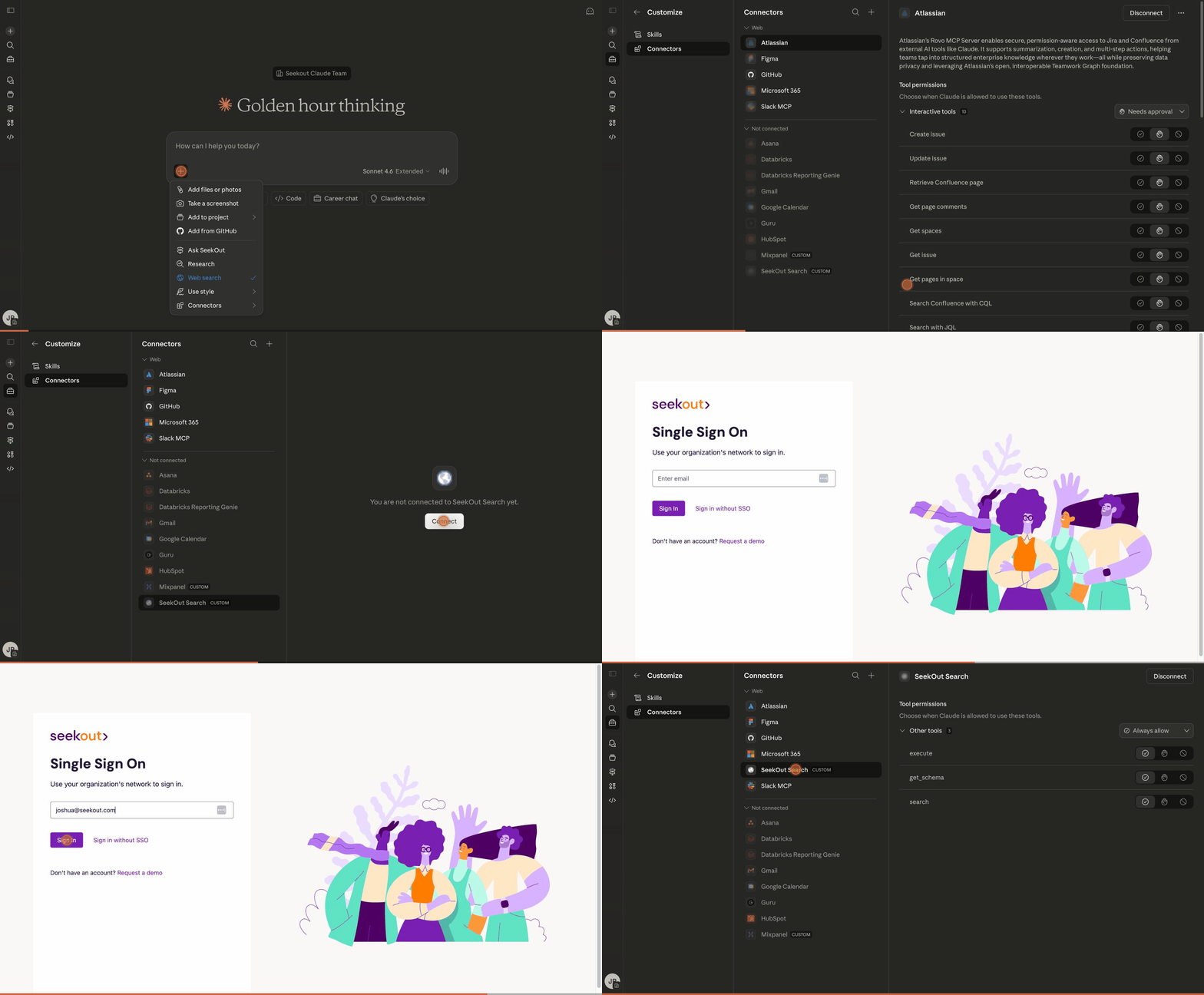
Claude: add the SeekOut connector and sign in with SSO
Troubleshooting
Claude repeatedly asks you to approve SeekOut tools
Claude asks for permission before running connector tools, and choosing Always allow in the prompt applies only to the specific tool that triggered it. To stop repeated prompts, pre-approve the SeekOut tools in your settings:- In Claude, open Settings → Connectors.
- Find the SeekOut connector and open its tool configuration.
- Set each SeekOut tool to Always allow.
- The setting is per user. Each member of a Team or Enterprise workspace configures it individually.
- Disconnecting and reconnecting the SeekOut connector can reset tool permissions to the default, so recheck them after reconnecting.