Build and publish a custom Microsoft Copilot Studio agent that uses the SeekOut connector.
Use the published SeekOut connector to add tools from the SeekOut MCP server to a custom Copilot Studio agent. After you configure the agent, publish it to your organization.
Go to Microsoft Copilot Studio and sign in. Open Agents → Create → New agent, then select Configure to enter the settings yourself.
2
Name and describe the agent
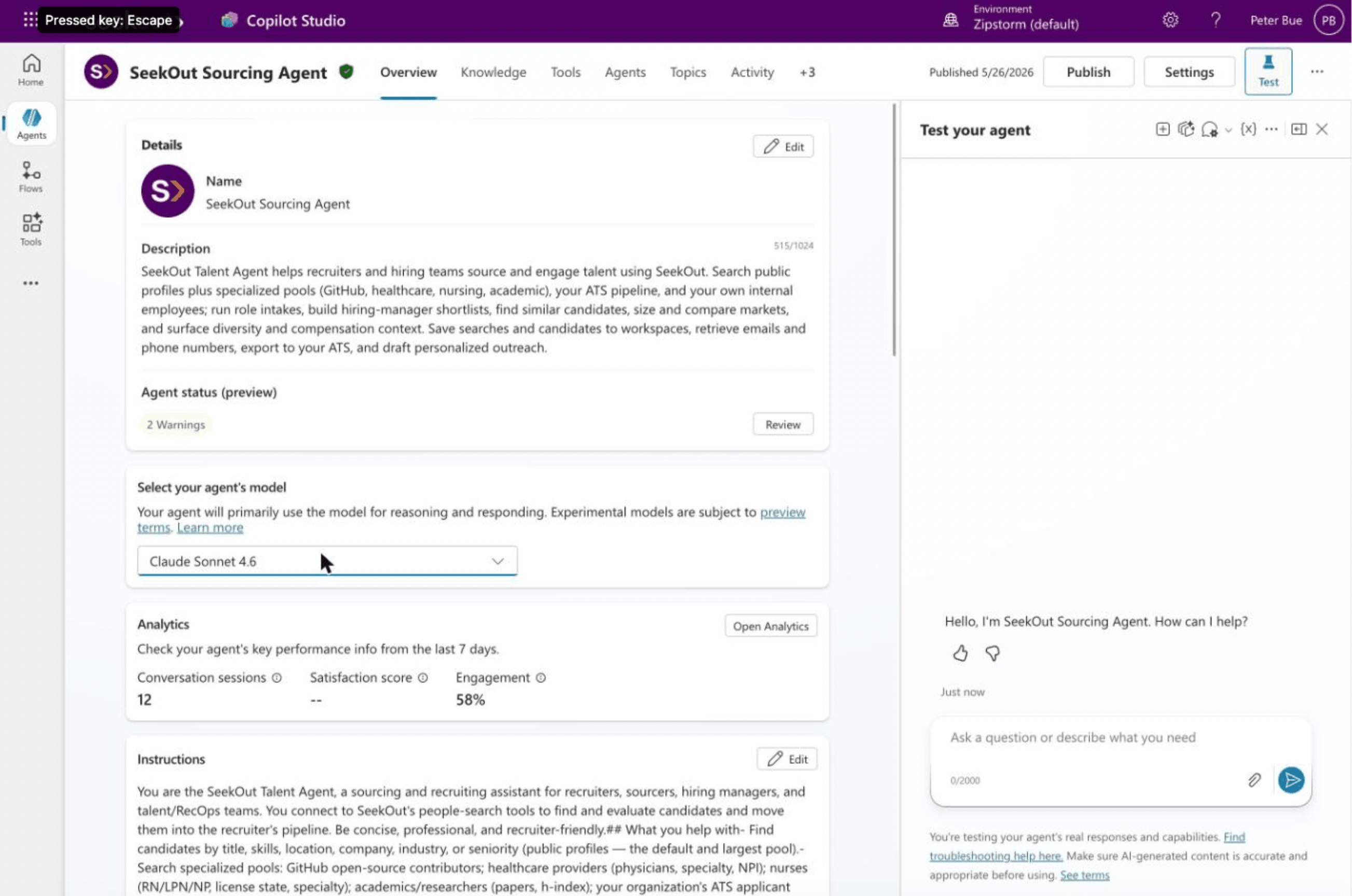
Name it SeekOut Sourcing Agent and paste this description:
SeekOut Sourcing Agent helps recruiters and hiring teams source and engage talent using SeekOut. Search public profiles plus specialized pools (GitHub, healthcare, nursing, academic), your ATS pipeline, and your own internal employees; run role intakes, build hiring-manager shortlists, find similar candidates, size and compare markets, and surface diversity and compensation context. Save searches and candidates to workspaces, retrieve emails and phone numbers, export to your ATS, and draft personalized outreach.
3
Select the model
Under Select your agent’s model, choose the latest production-ready Claude Sonnet model available to your organization.
4
Add the instructions
The SeekOut MCP server provides its own operating guidance and tool descriptions, so the agent needs only a persona, scope, and voice. Copy the prompt below and paste it into the agent’s Instructions field.
Copy the SeekOut Sourcing Agent instructions.
The configured agent overview
Select Save.
5
Configure authentication
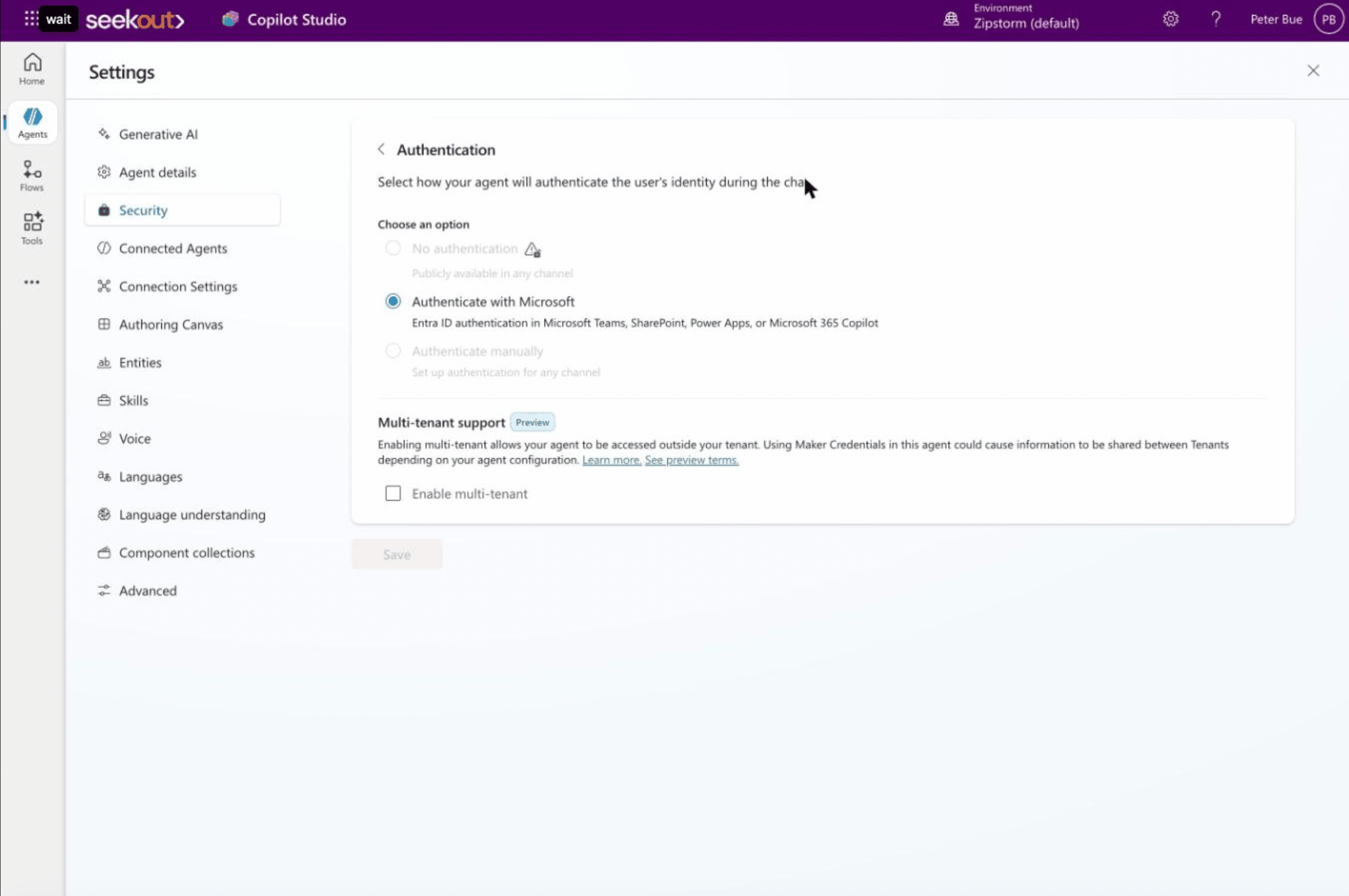
Open Settings → Security → Authentication and select Authenticate with Microsoft (Entra ID). If the agent will be used only within your organization, leave multi-tenant turned off, then select Save. This setting controls who can use the agent and is separate from the SeekOut sign-in later in the setup.
Security → Authentication → Authenticate with Microsoft
6
Add the SeekOut tool
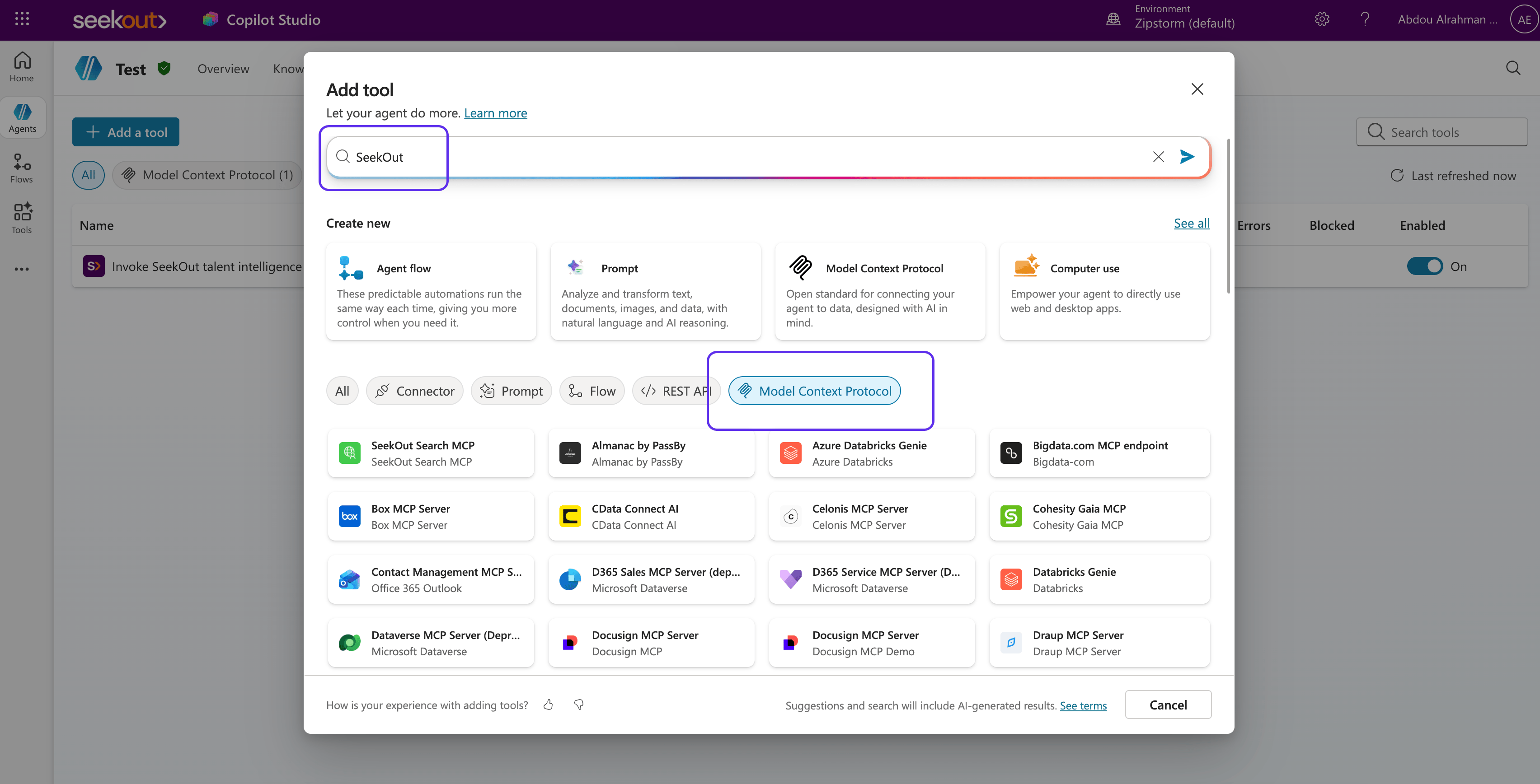
Select the Tools tab, then select Add a tool. In the tool picker, select the Model Context Protocol filter and search for SeekOut.
Tools → Add a tool
Filter to Model Context Protocol and search for "SeekOut"
7
Create the connection and sign in to SeekOut
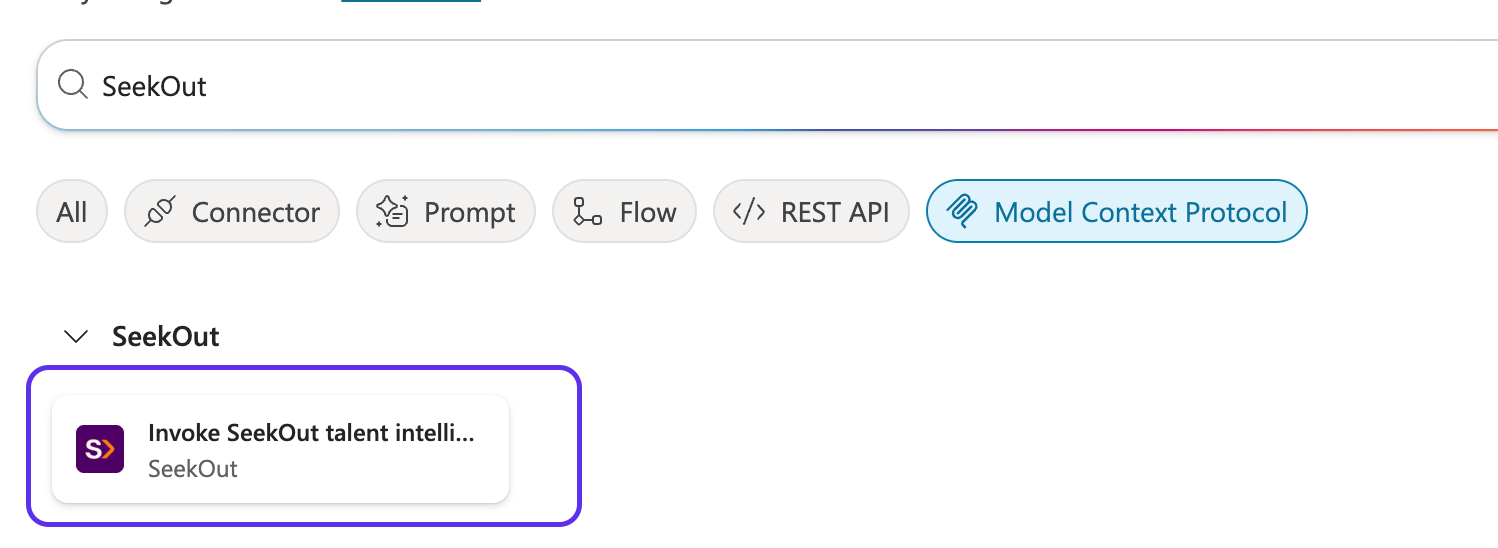
Select Invoke SeekOut talent intelligence, then select Create a connection. Copilot Studio redirects you to sign in with your SeekOut account and authorize the connection.
Select the SeekOut connector
8
Confirm generative orchestration is on
Open Settings → Orchestration and confirm that generative orchestration is turned on. Copilot Studio requires this setting to use MCP tools and select the appropriate SeekOut tools for each request.
9
Test the agent
In the test pane, try:
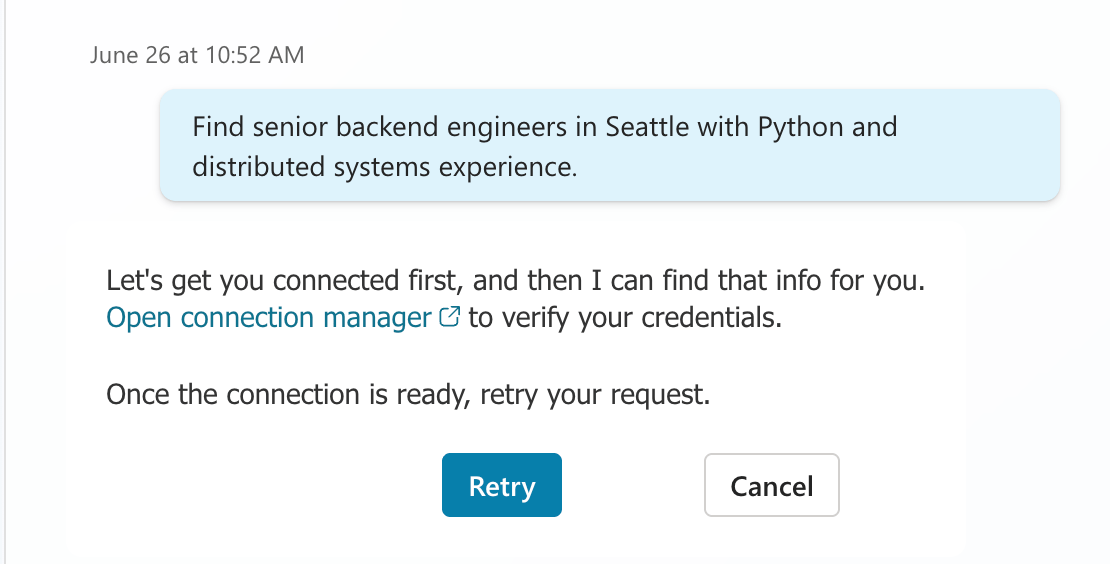
Find senior backend engineers in Seattle with Python and distributed systems experience.
The first time you run a SeekOut action, the agent prompts you to connect. Open Connection manager, sign in if prompted, then retry.
First run: connect through the connection manager, then retry
10
Publish to your organization
Open Channels from the agent’s overflow menu, then select Microsoft 365 and Microsoft Teams. Under Turn on Microsoft 365, select Make agent available in Microsoft 365 Copilot, set Availability options to Show to everyone in my org, select Save, then select Publish.
Agent overflow menu → Channels
11
Have an administrator approve the agent
Ask a Teams or Microsoft 365 administrator to approve the agent in the Teams admin center or Microsoft 365 admin center. The administrator should find SeekOut Sourcing Agent and make it available to the intended users.
12
Have users start using the agent
Direct users to Microsoft 365 Copilot and have them find SeekOut Sourcing Agent under All agents or in the Agent Store. Each user signs in with their own SeekOut account the first time they run a SeekOut action.
The SeekOut connector supplies tools from the SeekOut MCP server. The agent instructions and generative orchestration determine when Copilot uses them.
Open Connection manager from the agent’s prompt or Connection Settings in the agent’s settings. Confirm that you’re signed in to SeekOut, then retry your request. If the problem continues, contact your SeekOut account team or SeekOut Support.
Was this page helpful?
⌘I
Assistant
Responses are generated using AI and may contain mistakes.